Link Library & Bookmark Manager
Centralize your admin links, help articles, and internal docs. Find them instantly and paste them as perfectly formatted hyperlinks—no more raw URLs in your emails.
Your browser wasn't built
for this workflow.
Support pros juggle hundreds of URLs: admin panels, Jira tickets, help docs, and internal wikis. Managing them in a browser bookmark bar is like trying to file taxes on a sticky note.
The Folder Labyrinth
"Support > Tier 2 > Billing > Refunds..." By the time you click through your nested bookmark folders, the customer is already waiting.
The Slack Black Hole
You know a teammate shared that specific admin link last week. But searching Slack history for "admin link" brings up 500 results.
The Ugly URL
Sending raw URLs looks messy. To make them look professional, you have to copy the link, write the text, highlight it, press Cmd+K, and paste. It's a chore.
A library, not a list.
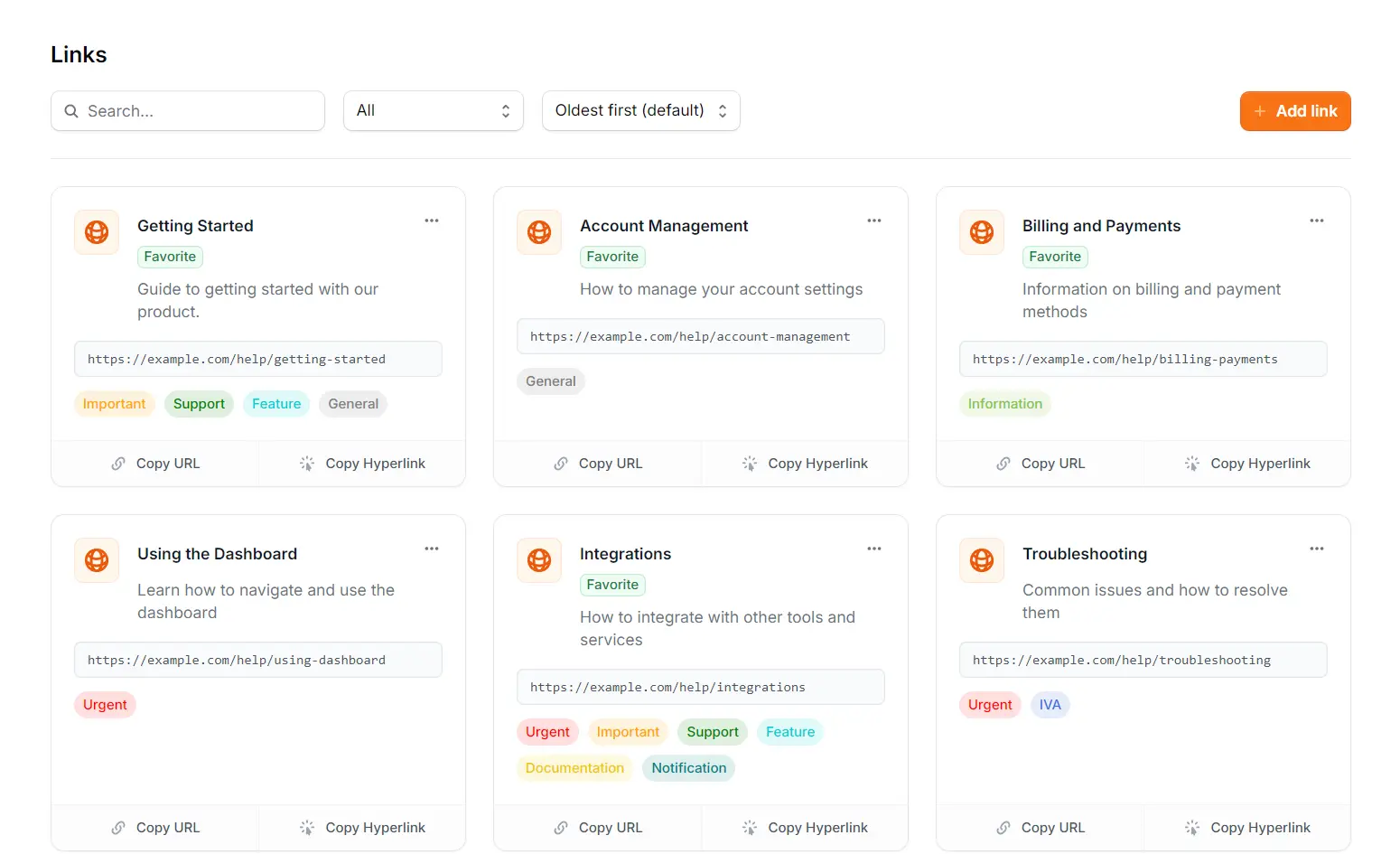
Support Toolbox gives your links a proper home. Organized with tags, searchable instantly, and smart enough to paste as formatted text automatically.
A bookmark manager that actually works.
Built for the specific needs of support agents who share links all day long.
Professional links, zero effort
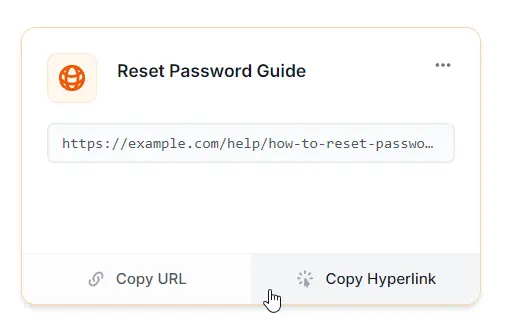
Stop sending raw, ugly URLs like https://help.com/articles/1234.
- Copy Hyperlink: Copies the title and link as a formatted HTML anchor. Pastes perfectly into Gmail, Slack, or Zendesk.
- Copy URL: Need the raw address? It's still just one click away.
Organize by context
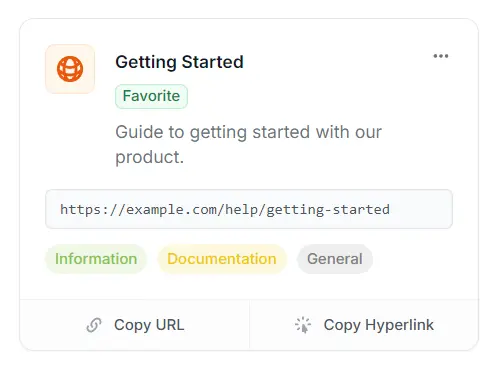
Is that link for "Billing" or "Troubleshooting"? With folders, you have to choose one. With Support Toolbox, you choose both.
- Custom Tags: Create color-coded tags like "Urgent", "Bug", or "Internal" to filter your view instantly.
- Favorites: Pin your daily drivers to the top of the list for quick access.
More than just a list of links.
Browser bookmarks were designed for browsing. Support Toolbox is designed for sharing.
Look Pro Instantly
Sending a raw URL like https://... looks messy. The "Copy Hyperlink" feature automatically formats your link as clickable text, making your emails look polished with zero extra effort.
Find Without Reading
Browser bookmarks are a wall of text. Support Toolbox uses visual cards with descriptions and colorful tags, making it much faster for your brain to scan and find the right resource.
Works Where You Work
You don't just work in Chrome. You work in Slack, native apps, and email clients. Your link library lives in your system tray, ready to use no matter which app is currently open.
Organized in seconds.
Ready when you are.
Turn your chaotic clipboard history into a curated library.
Save & Name
Paste the URL and give it a clean, human-readable title so you don't have to guess what the link is later.
Categorize
Apply tags like "Troubleshooting" or "Admin" to group related links together, regardless of where they live on the web.
Find Instantly
Use Search or the Link Library to retrieve the exact resource you need in milliseconds.
Choose & Paste
Click to copy as a formatted Hyperlink or a raw URL, then paste it directly into your ticket.
Common Questions
How the Link Library fits into your existing workflow.
Does this replace my browser bookmarks?
It complements them. Browser bookmarks are great for sites you want to read. Support Toolbox is designed for links you need to share with customers or access while working in other apps (like Slack or your help desk).
What exactly is "Copy Hyperlink"?
It copies the link as Rich Text (HTML). Instead of pasting a raw URL like https://example.com, it pastes the link title (e.g., "Reset Guide") linked to that URL. It works perfectly in Gmail, Zendesk, Slack, and Help Scout.
Can I import my bookmarks from Chrome?
Not currently. We encourage a "clean slate" approach. Most browser folders are full of dead links. We recommend adding only the 20-50 links you actually use daily to keep your library fast and clutter-free.
Can I tag one link with multiple tags?
Yes. Unlike folders where a file can only be in one place, tags let you categorize a link by multiple contexts. You can tag a link as "Billing", "Urgent", and "Internal" simultaneously.
Give your support links a proper home.
Switch to a link manager designed specifically for the high-speed demands of customer support.