Write it perfectly once.
Use it forever.
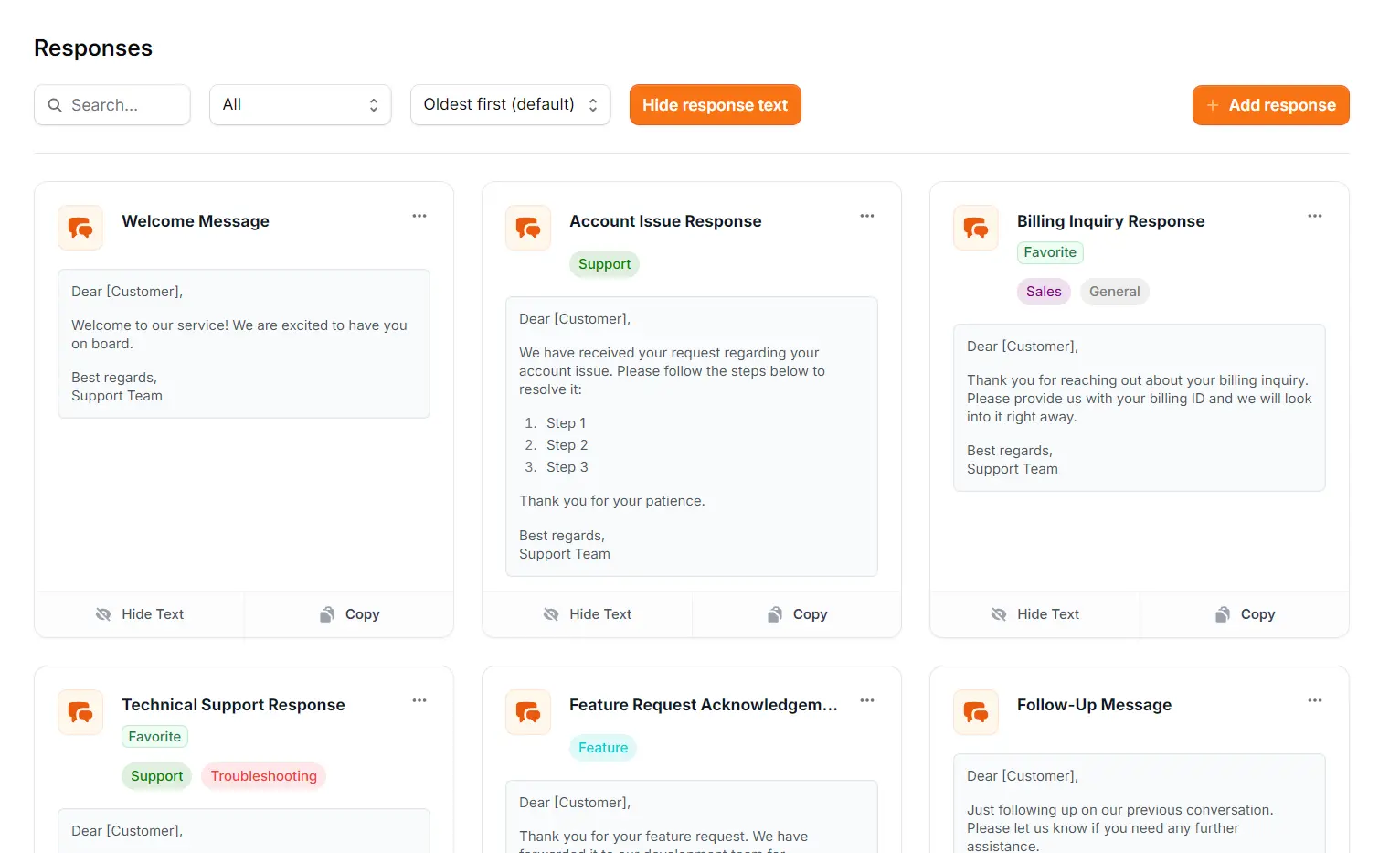
From quick snippets to complex troubleshooting guides. Store your best answers in a searchable, organized library so you never have to dig through old tickets again.
"I know I wrote this
somewhere..."
You've already written the perfect explanation for that tricky bug. The problem is, it's buried in a closed ticket, a random Google Doc, or a Slack thread from three months ago.
The App Scatter
Your knowledge is fragmented across Google Sheets, Notion, Apple Notes, and sticky notes on your desktop. Nothing is ever in the same place.
The Hunt
You spend valuable time scrolling through "Sent Items" or searching Slack history, trying to find that one specific phrasing you used last week.
The Quality Drift
When you can't find the "good" answer, you rush to type a new one from scratch. It's less polished, potentially inaccurate, and inconsistent with the team.
Centralize your craft.
Support Toolbox gives you one home for your best answers. From simple one-liners to rich-text guides, everything is tagged, searchable, and ready to paste.
Built for the complexity of support.
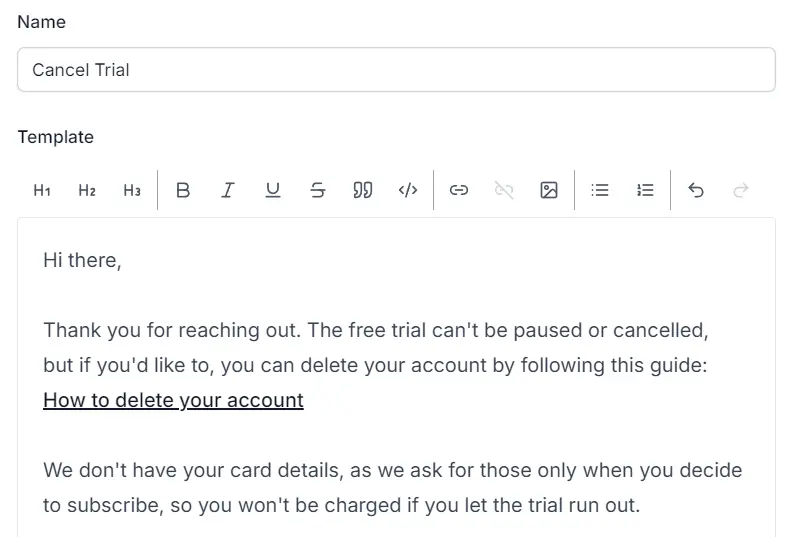
Standard clipboard managers strip formatting. Support Toolbox preserves it, so your answers always look professional.
More than just plain text
Support answers require clarity. Use bold text for emphasis, bullet points for steps, and hyperlinks to documentation.
- Full Formatting: Headers, lists, hyperlinks, and more.
- Images: Paste annotated screenshots directly into templates.
Organized how you think
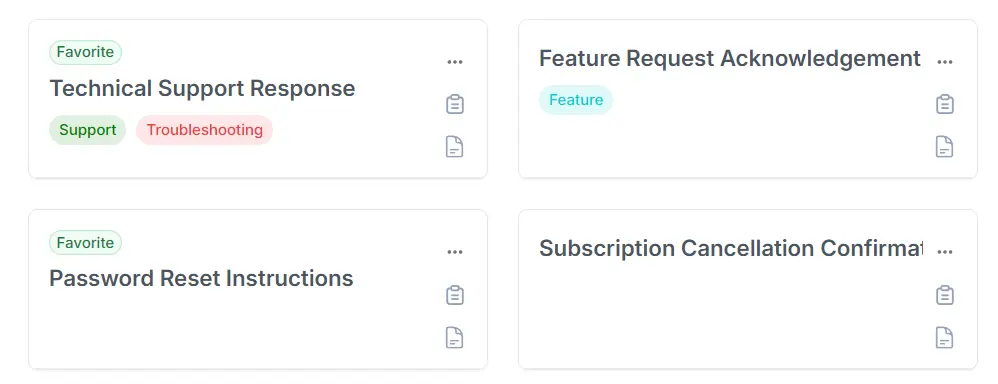
Folders are too rigid. Support Toolbox uses a flexible tagging system so you can categorize answers by multiple contexts at once.
- Multi-Tagging: Tag a template as both "Billing" and "Refunds".
- Favorites: Pin your most-used answers to the top.
The quality of a knowledge base.
The speed of a clipboard.
Support Toolbox bridges the gap between temporary clipboard managers and heavy documentation tools.
Beyond Plain Text
Technical support requires clarity. Plain text doesn't cut it. Use bolding for emphasis, bullet points for steps, and hyperlinks to docs to make your answers easy to follow.
Never Lose Knowledge
Stop relying on your memory for that obscure bug fix from 3 months ago. Write it down once, tag it as "Troubleshooting", and rest easy knowing it's there when you need it.
Context Switching Killer
Every time you Alt-Tab to Google Docs, you lose focus. Access your entire library via Search without ever leaving your help desk or chat window.
From idea to answer
in four steps.
Build your personal knowledge base without slowing down your daily workflow.
Write & Format
Draft your response with headers, bold text, links, and lists to make it easy for customers to read.
Tag & Organize
Label your template with multiple tags like "Billing" or "Bug" so you can find it by context later.
Find Instantly
Use Search to retrieve your template by name or tag in under a second.
Copy & Paste
Hit Enter or click to copy the rich text to your clipboard, then paste it directly into your chat or email.
Common Questions
Details about the editor, formatting, and storage.
Does it preserve formatting when I paste?
Yes. The app copies your content as Rich Text (HTML). When you paste into tools like Zendesk, Help Scout, Gmail, or Slack, all your bold text, headers, links, and lists appear exactly as you designed them.
Can I include images in templates?
Absolutely. You can paste screenshots and diagrams directly into the editor. They are stored locally within the app and will be pasted alongside your text automatically.
How is this different from a clipboard manager?
Clipboard managers usually just save a history of what you've copied recently. Support Toolbox is a permanent library where you curate, title, tag, and organize your best answers for long-term use.
Can I search by content or just title?
Both. The search engine scans the template title, the body text, and any tags you've applied. You can find a specific guide even if you only remember a keyword from the third paragraph.
Your personal support library.
Stop digging through old tickets to find that one perfect answer.
Write it once, save it here, and use it forever.