Screenshot Library & Asset Manager
Build a library of annotated screenshots, error messages, and UI guides. Find the perfect visual in seconds and paste it instantly.
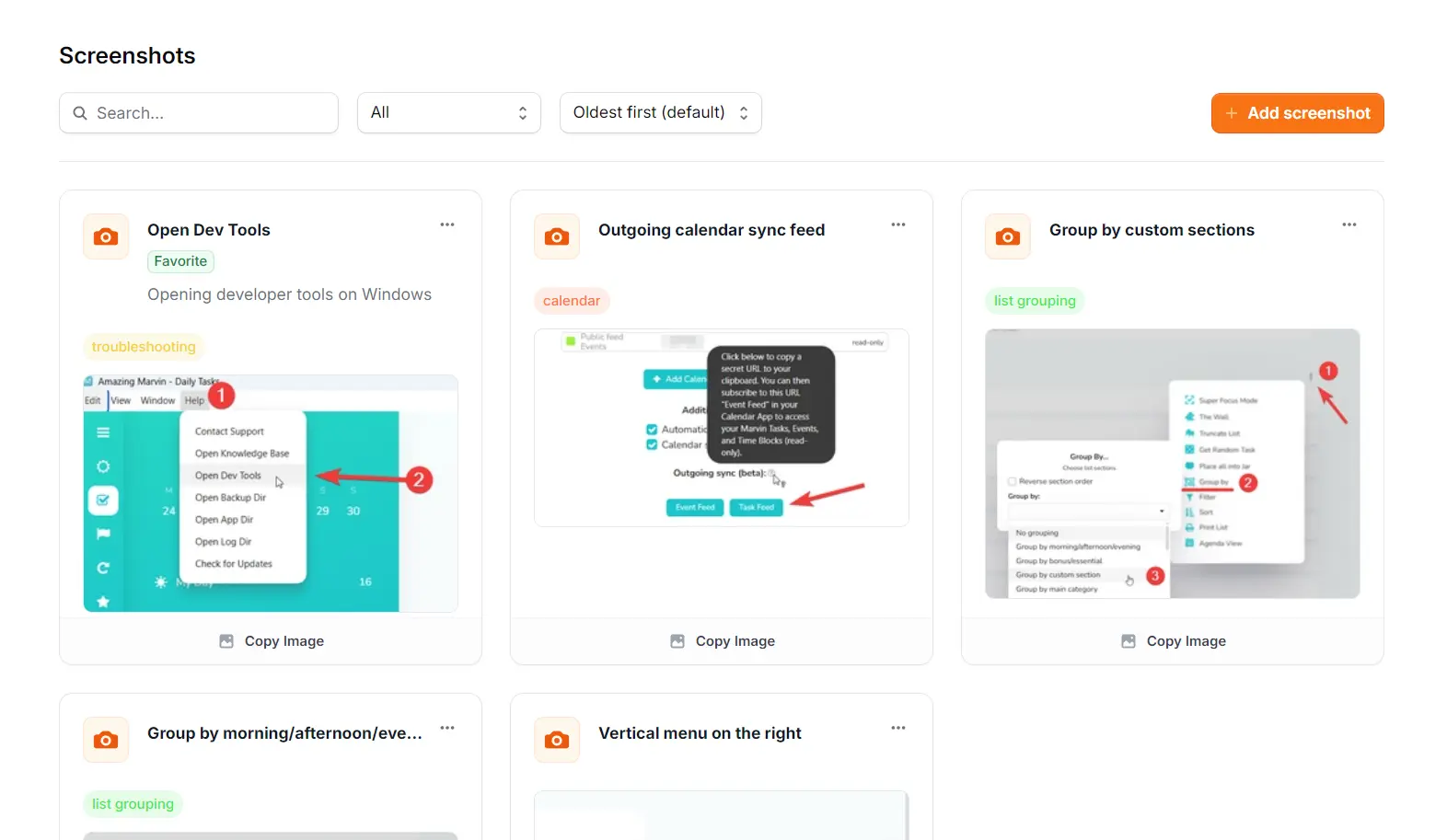
Showing is faster than telling.
But only if you can find the image.
"Click the blue button" is easier to show with a screenshot than to explain with text. But managing hundreds of UI snippets, error messages, and diagrams is a logistical nightmare.
The Desktop Graveyard
Screenshot 2024-11-26 at 09.45.png. Good luck finding the specific billing settings diagram in a folder full of hundreds of identical-looking files.
Groundhog Day
You take the same screenshot of the "Reset Password" screen five times a week. It wastes time and leads to inconsistent, rushed visuals.
Inconsistent Quality
Sometimes you use a red arrow, sometimes a blue box. Sometimes you blur sensitive data, sometimes you forget. Your support visuals look messy and unprofessional.
A dedicated Asset Manager.
Support Toolbox treats your screenshots like first-class citizens. Organize them alongside your links and templates, tag them by feature, and reuse your best work instantly.
Your best assets, on speed dial.
Stop digging through folders. Treat your visuals like a reusable library.
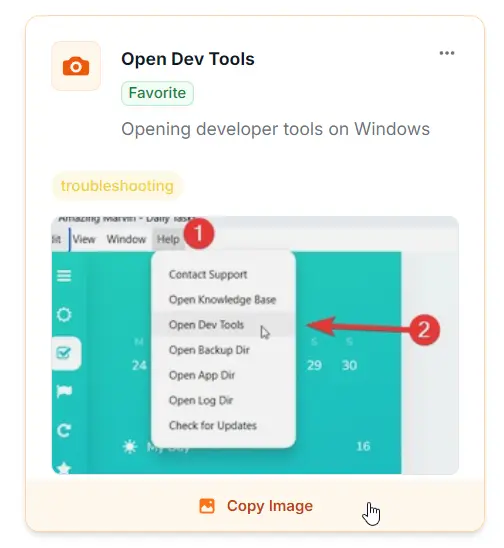
Skip the upload cycle
You don't need to download a file, find it in your "Downloads" folder, and then drag it into the chat.
- Direct Copy: Clicking "Copy Image" puts the actual image data on your clipboard.
- Paste Anywhere: Works instantly in Slack, Zendesk, Gmail, or Notion.
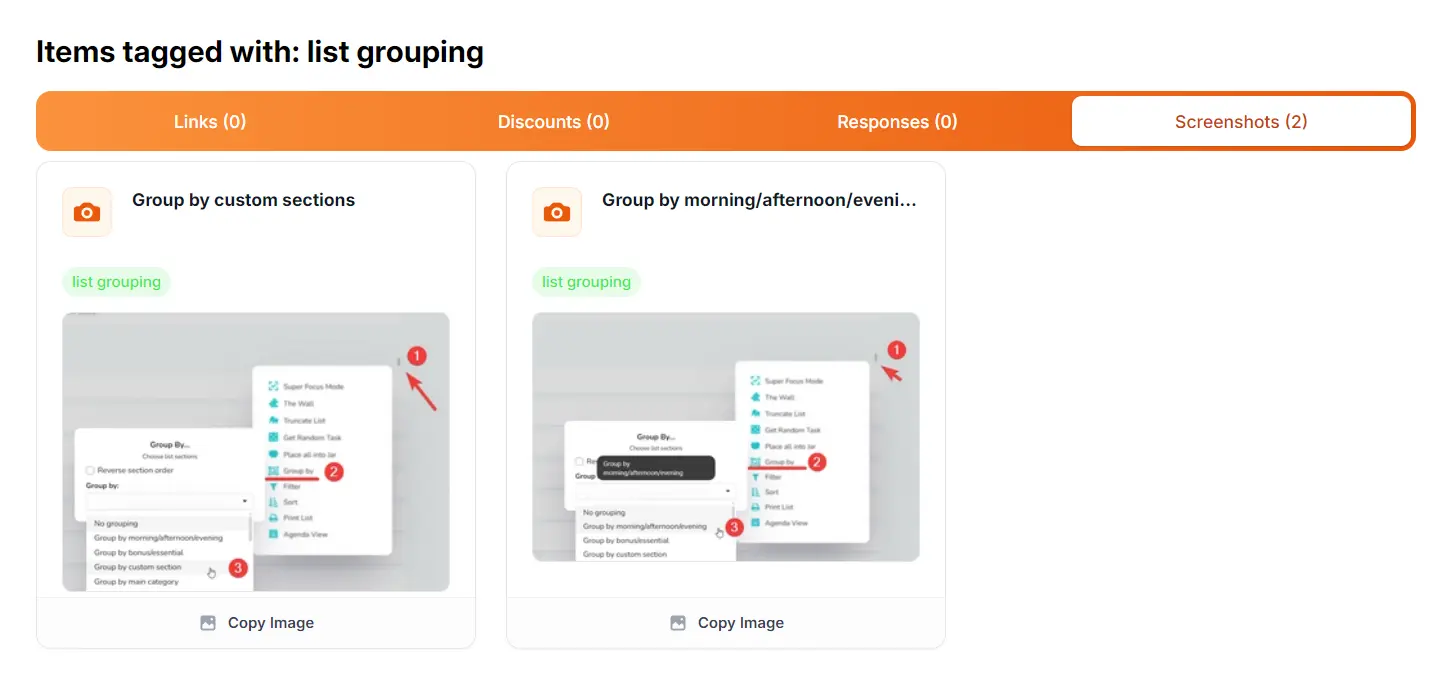
Find visually
File names like Screen Shot 2024... are useless. Support Toolbox uses large previews and tags so you can find what you need by looking, not reading.
- Smart Tagging: Group images by feature ("Settings", "Billing") or issue type ("Error", "Bug").
- Instant Previews: Large grid cards make it easy to spot the right diagram instantly.
A visual knowledge base
that saves you hours.
Turn your ad-hoc screenshot habit into a streamlined support system.
Always Look Professional
Stop sending rushed, blurry screenshots while the customer waits. Curate a library of high-quality, annotated images so every explanation you send looks polished and clear.
Instant Retrieval
Filenames are useless for images. Our visual grid view lets your brain scan dozens of screenshots in seconds, finding the exact UI element or error message you need instantly.
Annotate Once, Reuse Forever
Stop drawing the same red arrow on the same settings menu every single day. Do the work once, save it to the library, and never waste time re-creating it again.
Capture once.
Paste a thousand times.
Build your personal visual database without slowing down your daily workflow.
Save Best Assets
Drag and drop your best annotated screenshots or diagrams directly into the library.
Tag & Categorize
Label images with tags like "Settings", "Errors", or "Onboarding" to organize them by context.
Find Visually
Scan the grid or filter by tag. It's much faster than reading file names in a folder.
Copy & Paste
One click to put the image on your clipboard. Paste it directly into Slack, Zendesk, or email.
Common Questions
How the Screenshot Library fits into your existing toolset.
Does this replace Snagit, CleanShot, or the Snipping Tool?
No. It complements them. You continue using your favorite tool to capture and annotate images. Support Toolbox is where you save the final result so you don't have to capture the same thing again tomorrow.
Does it upload my screenshots to the cloud?
No. Support Toolbox is a local-first application. Your images are stored securely on your own computer's hard drive. We never see your data, which is crucial for sensitive support screenshots.
What file formats are supported?
The library supports all common image formats including PNG, JPG, JPEG, GIF, and WebP. You can drag and drop files directly from your desktop or other folders.
Can I organize images with tags?
Yes. You can add multiple custom tags (e.g., "Billing", "Error Message", "V2 Interface") to any screenshot, making it easy to filter and find exactly what you need later.
Your visual knowledge base.
Stop searching your desktop for that one screenshot.
Organize your visual assets today and never re-capture the same image again.