Search & Command Bar
find anything.
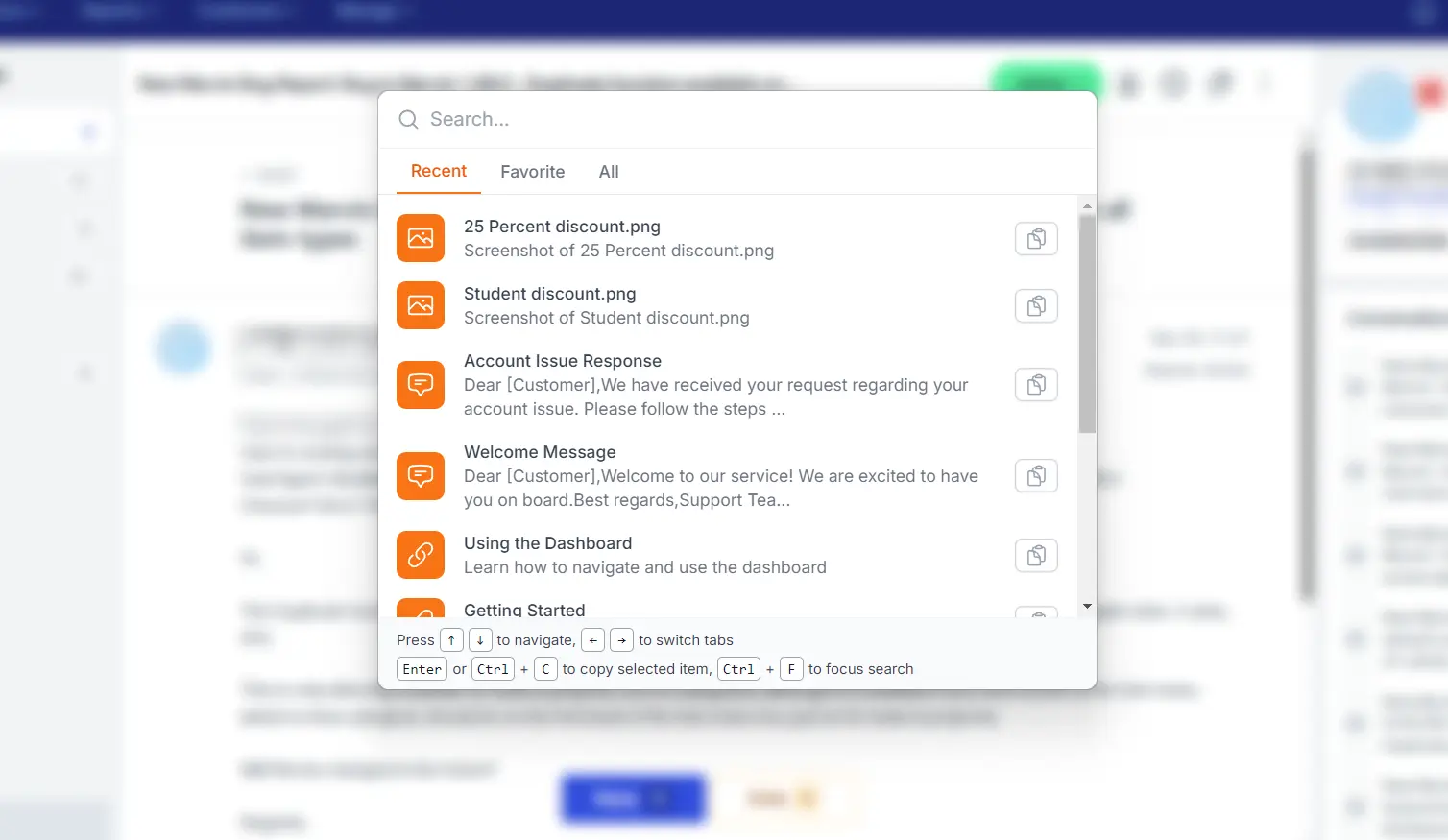
Don't break your flow. Press a hotkey to open the Search overlay, find any asset in milliseconds, and copy it to your clipboard.
The "Alt-Tab" cycle is
killing your flow.
Every time you minimize your help desk to find a link or template, you pay a "context tax." It takes seconds to switch windows, but minutes to regain your focus.
Window Juggling
Your workflow involves a browser for tickets, a notes app for snippets, and Slack for internal questions. You spend half your day just managing windows.
Mouse Miles
Navigating through folders and bookmarks requires precision clicking. It's slow, repetitive, and hard on your wrists.
Lost Focus
By the time you find the file you were looking for, you've momentarily forgotten the customer's specific question.
Bring the library to you.
Support Toolbox Search floats on top of your work. You don't go to the app; the app comes to your cursor. Grab what you need and get back to the ticket instantly.
Designed for speed, built for muscle memory.
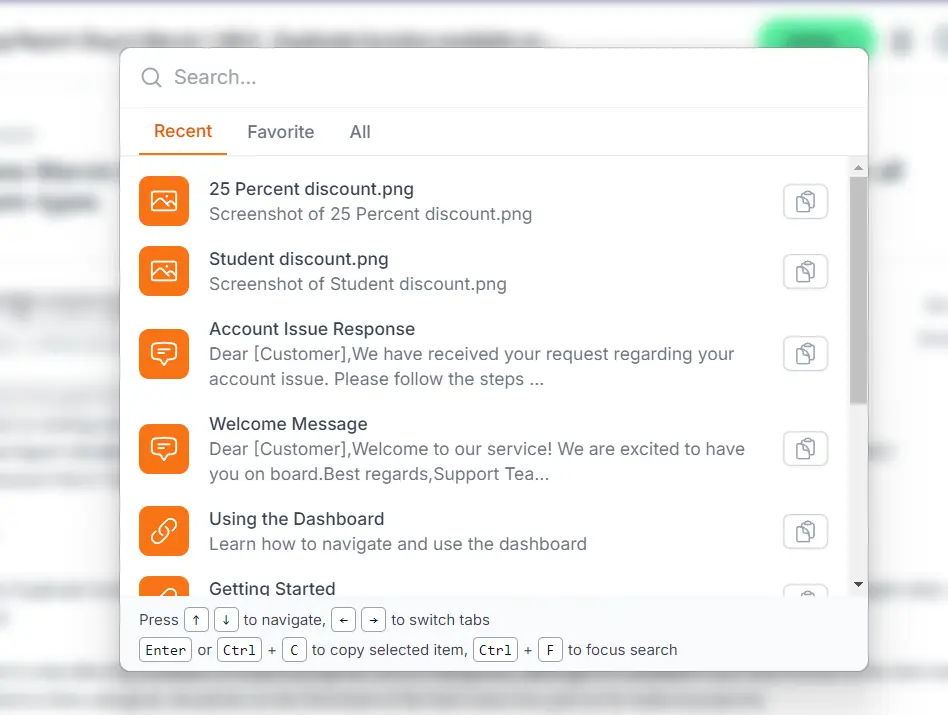
The interface is stripped of distractions and optimized for keyboard-first interaction.
Unified Results
Don't worry about categories. Links, templates, and screenshots appear in one unified list. Just type "reset" and see the guide, the link, and the screenshot all at once.
Smart Context
Support is repetitive. The Recent tab remembers your last actions, so you can grab that "Welcome Email" template again without typing a single character.
Keyboard First
Keep your hands on the home row. Use Arrow Keys to navigate and Enter to copy. You never need to touch the mouse.
The engine that powers
your entire workflow.
Why searching with Support Toolbox is faster than searching inside your help desk.
Works Everywhere
It doesn't matter if you are in Zendesk, Intercom, Gmail, or Slack. The search bar floats on top of your active window, so you never have to minimize your work to find an answer.
Keyboard First
Designed for speed. Trigger with a hotkey, navigate with arrows, and copy with Enter. You can find and paste a resource without your hands ever leaving the home row.
Unified Memory
It remembers what you use most across all categories. Whether your last action was copying a link, a discount, or a screenshot, it's waiting for you in the "Recent" tab.
Find, copy, and paste.
In under 2 seconds.
The fastest way to access your support library without leaving your keyboard.
Trigger
Press the global hotkey from anywhere in macOS or Windows. The search bar appears instantly over your active window.
Type
Start typing a keyword like "refund" or "reset". Results appear instantly across all your categories.
Select
Use the Arrow Keys to navigate down the list and highlight the exact link, template, or screenshot you need.
Action
Hit Enter. The window disappears, and the content is instantly on your clipboard, ready to paste.
Common Questions
How the global search fits into your desktop workflow.
Does the app need to be open to use the search?
As long as Support Toolbox is running (even if minimized in the background), the global hotkey (e.g., Ctrl+Space) will summon the search bar instantly over any other application.
Is it fully keyboard accessible?
Yes. The entire workflow is designed to be used without a mouse. You can trigger the window, type your query, navigate results with Arrow keys, and copy with Enter—all while keeping your hands on the keyboard.
What types of content can I search?
Universal Search indexes your entire library: Links, Response Templates, Screenshots, and Discount Codes. You don't need to switch tabs to find different types of content; they all appear in one unified list.
What happens when I select an item?
When you hit Enter on a result, two things happen immediately: the content (text, image, or link) is copied to your clipboard, and the search window disappears. You are instantly ready to paste into your ticket.
Everything you need, one keystroke away.
Stop clicking through folders and fighting with browser tabs.
Start finding answers instantly.