
Type less.
Help faster.
Turn a short shortcut into a complete response, link, discount code, or screenshot, right where you're already typing. No searching, switching windows, or manual copy and paste.
Free users are limited to 10 different expansions.
Three simple steps
From shortcut to complete answer in a moment.
Create a memorable shortcut once, then use it anywhere you normally type.
Choose what to expand
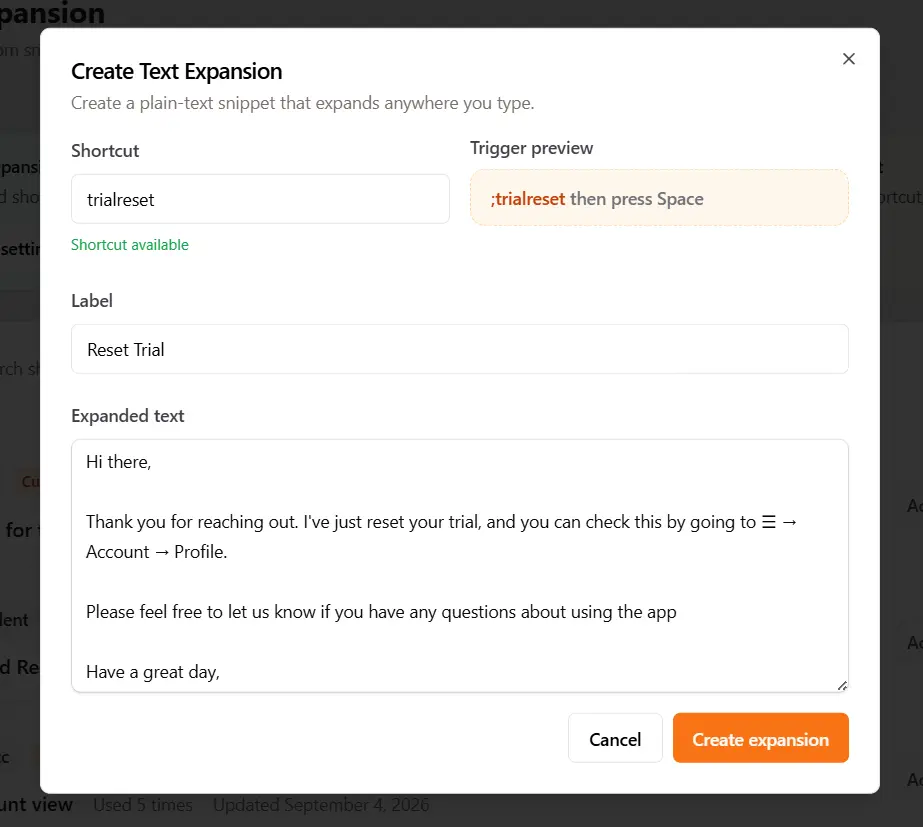
Write custom text or connect a response, discount code, link, or screenshot already saved in Support Toolbox.
Pick a shortcut
Give it a short mnemonic such as refund. Your prefix is added automatically, for example ;refund.
Type it and press Space
Support Toolbox replaces the trigger with the full content in your help desk, email, chat, browser, or other app.
More than canned text
Expand the content you already rely on.
Text Expansion connects directly to your Support Toolbox library. When you improve a saved item, its shortcut uses the latest version automatically.
Custom text
Sign-offs, greetings, notes, and other reusable plain text.
Responses
Insert polished answers from your response library.
Discount codes
Paste the correct code without opening another window.
Links
Choose a raw URL or a clean, named hyperlink.
Screenshots
Insert a saved full-resolution image into the conversation you're working on.
Fits your workflow
Shortcuts that stay organized.
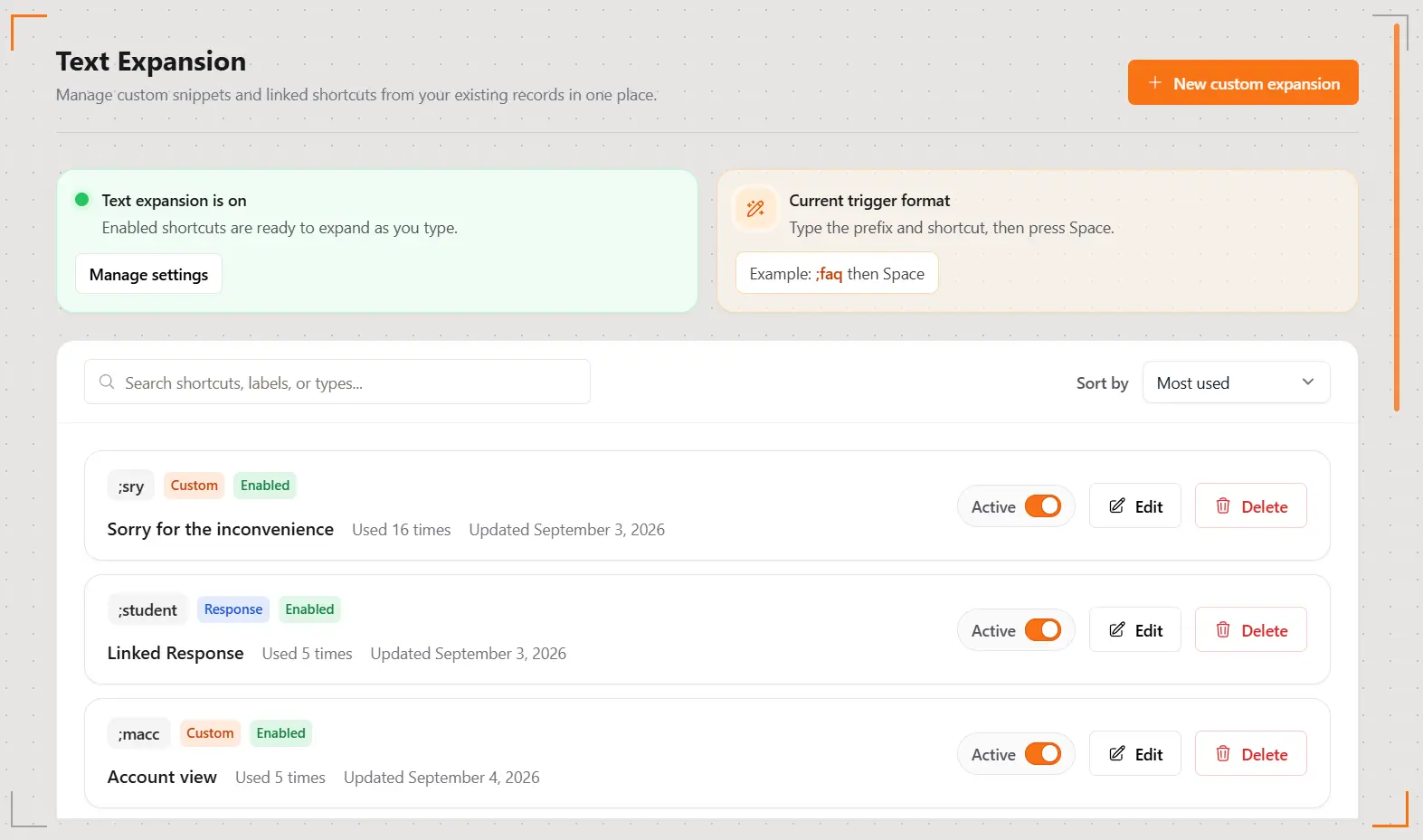
Manage every expansion from one focused page. Search and sort your list, edit shortcuts, turn individual items on or off, and see which ones save you the most time.
- Choose a prefix that feels natural to type.
- Keep separate shortcut collections in separate workspaces.
- Disable an expansion without deleting it.
- See usage counts and keep your most valuable shortcuts easy to find.
Private by design
Your typing stays yours.
Support Toolbox only checks a small, temporary sequence of recent keystrokes to recognize your shortcuts. What you type is never saved, logged, reported, or transmitted.
Your expansions and linked library items remain in the active local workspace, just like the rest of your Support Toolbox data.
Works across Windows and macOS.
Use the same fast expansion workflow in the desktop apps and browser tools where you already support customers.
Windows
Text Expansion works in normally running apps. Windows security prevents Support Toolbox from inserting content into an app that is running as administrator unless both apps have the same permission level.
macOS
macOS asks you to grant Accessibility access so Support Toolbox can recognize a shortcut and insert its content. The app guides you to the correct System Settings screen when permission is needed.
Common questions
Everything you need to start expanding your most-used support content.
Where can I use a shortcut?
In most places you can type or paste: help desks, email, chat apps, browsers, documents, and more.
What happens when I edit a linked item?
Its shortcut automatically inserts the current version. You don't need to update the expansion separately.
Can I change the prefix?
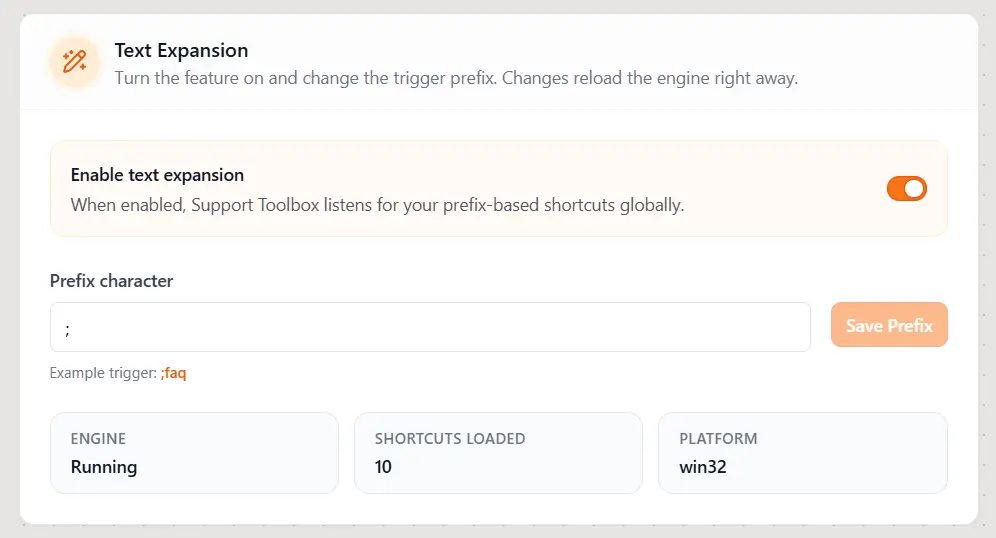
Yes. The prefix is an app-wide setting, so changing it updates the complete trigger for every expansion at once.
Is Text Expansion free?
Text Expansion is included with all paid plans. Free users can try the feature with up to 10 different expansions. To create and use unlimited expansions, you'll need to subscribe to a paid plan.
Save time on every reply.
Use up to 10 Text Expansions for free, then go unlimited with a paid plan.