
Support Toolbox keeps the links, responses, screenshots, and discount codes you use every day in one place, so you can find them and paste them into a reply in seconds. This guide walks you through setting up the app, saving your first item, and using it while you work.
Install Support Toolbox
Support Toolbox is available for Windows and macOS. Download the installer for your computer from the download page, then open it to install the app.
Set up your workspace
The first time you open Support Toolbox, a short setup helps you get ready:
- On the welcome screen, click Get Started.
- Take a quick look at the feature tour, then click Next.
- Enter a Workspace Name. You can rename it later.
- Leave Create example items on if you’d like a sample link, response, discount, and tag to explore. Click Next.
- Create a free account or log in. If you’d rather do this later, click Skip this step.
- Click Launch Support Toolbox.
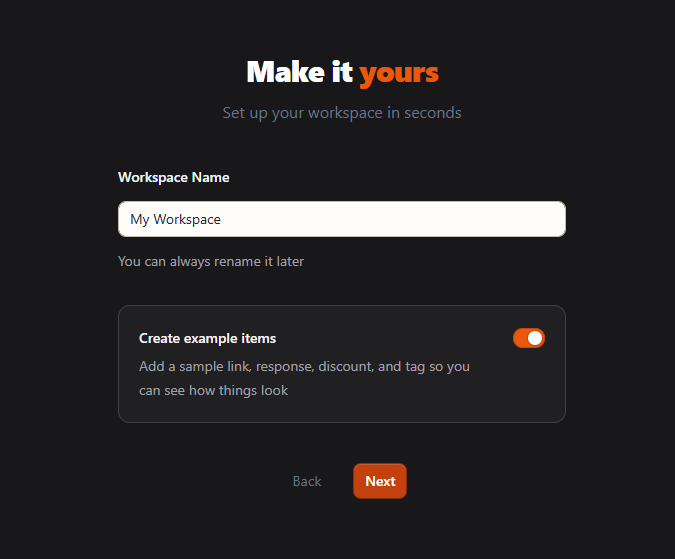
You can use Support Toolbox without an account. The Free plan limits how many items you can save, and you can subscribe anytime to remove the limits.
Find your way around
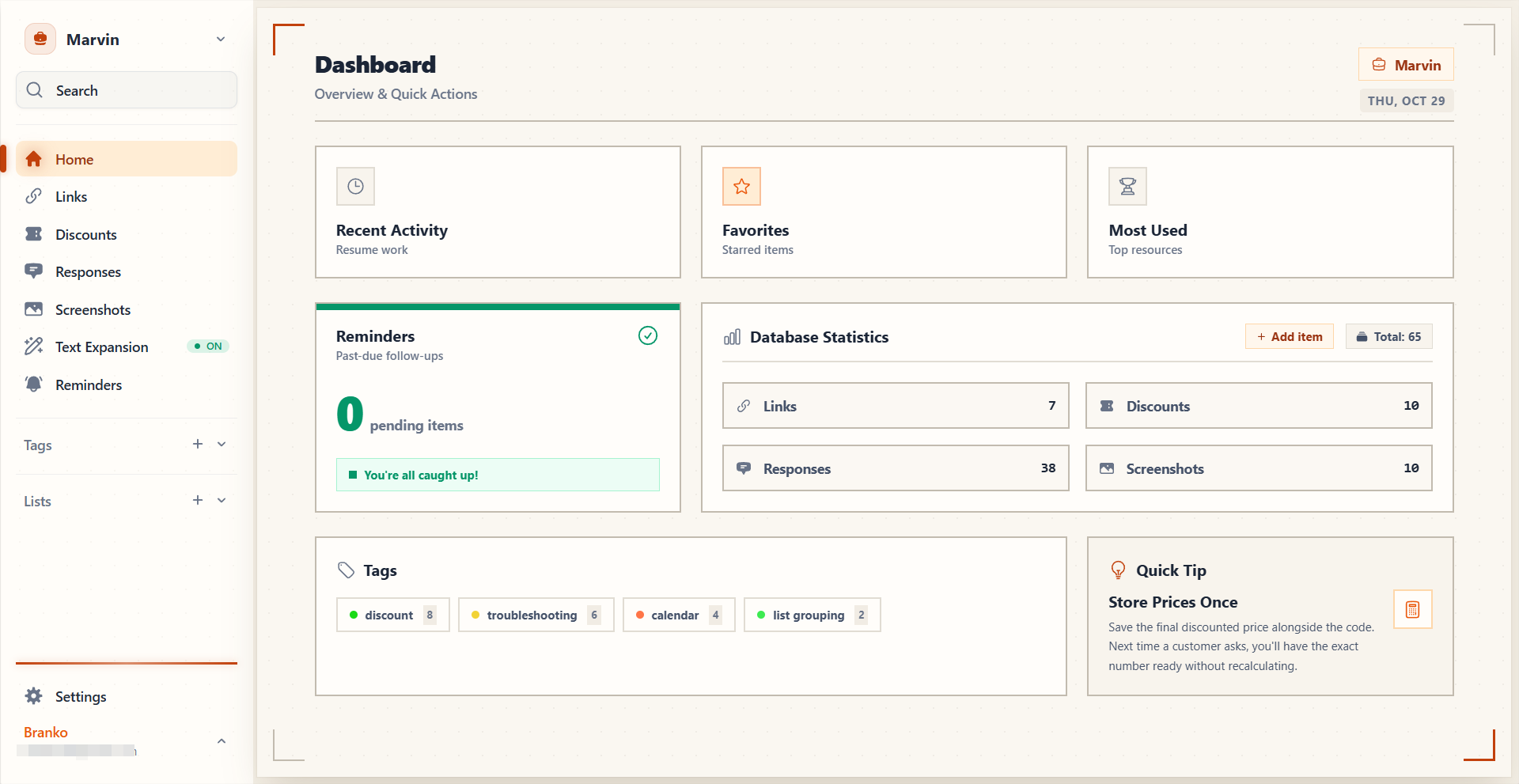
Everything in Support Toolbox starts from the sidebar:
- Home shows your recent activity, favorites, most-used items, and tags.
- Links, Discounts, Responses, and Screenshots are your libraries. Each one holds a different kind of item.
- Text Expansion lets you insert items by typing a short shortcut.
- Tags group related items from all of your libraries.
- Settings is where you change shortcuts, turn features on or off, and manage your account.
To learn which library to use for what, see How to organize links, responses, and screenshots.
Save your first item
Links are a good place to start. To save one:
- In the sidebar, click Links.
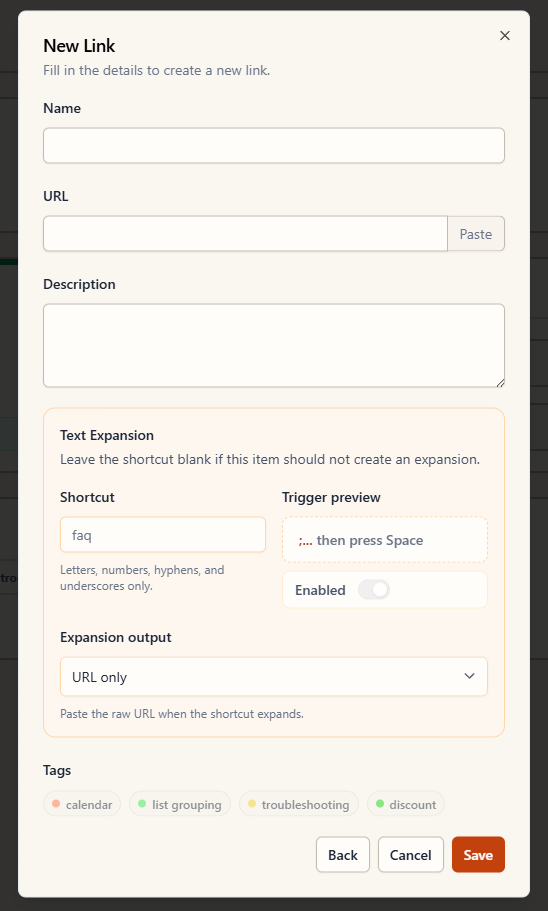
- Click Add link.
- Enter a Name and the URL. Add a Description if you want to include extra details or words you’d search for.
- Under Tags, click any tags you want to add.
- Click Save.
Responses, screenshots, and discounts work the same way. Open their page in the sidebar and click Add response, Add screenshot, or Add discount.
Copy an item into your reply
Every item has a quick way to copy it, so you can paste it into your help desk, email, or chat:
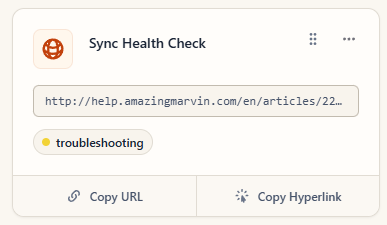
- On a link, click Copy URL to copy the address, or Copy Hyperlink to copy the link’s name as a clickable link.
- On a response, click Copy. The response keeps its formatting when you paste it.
- On a screenshot, click Copy Image.
- On a discount, click the code.
Use Quick Search from any app
You don’t need to switch to Support Toolbox to find an item. Quick Search opens on top of whatever app you’re using:
- Press Ctrl+Shift+G on Windows or Cmd+Shift+G on macOS.
- Start typing to search all of your libraries.
- Use the arrow keys to select an item, then press Enter to copy it.
- Paste it where you need it.
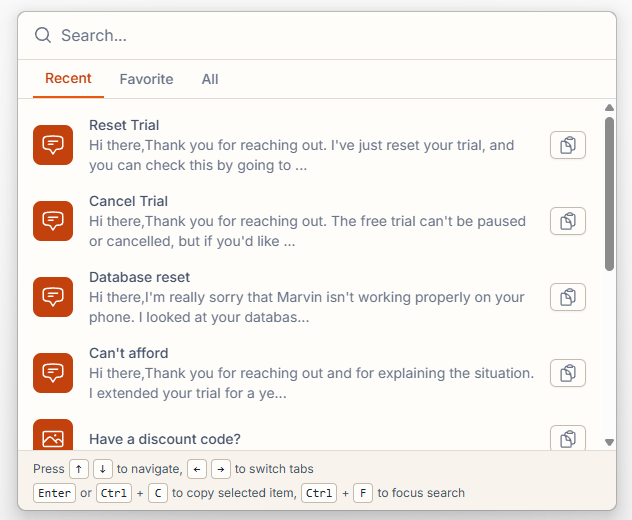
If the shortcut conflicts with another app, you can change the Quick Search shortcut. To learn more, see How to find and reuse items with Quick Search.
Insert items as you type with Text Expansion
Text Expansion inserts an item when you type its shortcut, like ;refund, followed by a space. It’s off until you turn it on:
- Open Settings.
- Turn on Enable text expansion.
To give an item a shortcut, edit the item and enter one in the Shortcut field under Text Expansion. Learn more about creating Text Expansion shortcuts.
On macOS, Support Toolbox needs Accessibility permission to insert text. If your shortcuts don’t expand, see Text Expansion isn’t working.
Next steps
- How to organize links, responses, and screenshots
- How to choose which items appear in the sidebar
- How to change the Quick Search window shortcut
Still need help?
Contact us and tell us what you were trying to do and where you got stuck.
Contact support