
Support Toolbox keeps your support material in separate libraries. When you save each item in the right library, tag it by topic, and mark the ones you use most, you can find what you need quickly while you’re helping a customer.
Choose the right library
Each library in the sidebar holds one kind of item:
- Links are pages you send or open often, like help center articles, admin pages, and internal docs. Each link has a name, a URL, and an optional description.
- Responses are replies you send again and again, like refund confirmations or troubleshooting steps. Responses keep their formatting, so they can include bold text, lists, links, and images.
- Screenshots are images you share with customers, like a picture showing where to find a setting. Each screenshot has a name and an optional description.
- Discounts are discount codes you give to customers.
Give each item a name you’d actually search for. The search box at the top of each library looks for matches in names and descriptions, as well as in link URLs and response text. To search every library at once, click Search at the top of the sidebar.
If you don’t use one of the libraries, you can hide it from the sidebar. Hiding a library doesn’t delete anything saved in it.
Group related items with tags
Tags work across all libraries, so a single tag can group the links, responses, and screenshots you use for the same topic. For example, a Billing tag could hold your billing portal link, your refund response, and a screenshot of the invoice page.
Tags work best when they describe the topics you handle, like Billing, Shipping, or Account access. A few broad tags are usually easier to use than many narrow ones.
Create a tag
- In the sidebar, find the Tags section.
- Click + next to Tags.
- Enter a Name and choose a Color.
- Click Create Tag.
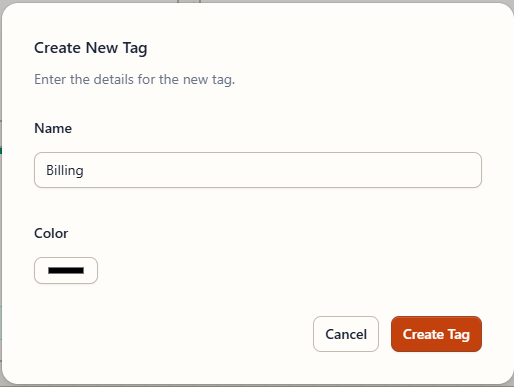
The new tag appears in the sidebar under Tags.
On the Free plan, you can create a limited number of tags. The number next to Tags in the sidebar shows how many you’ve used.
Add tags to an item
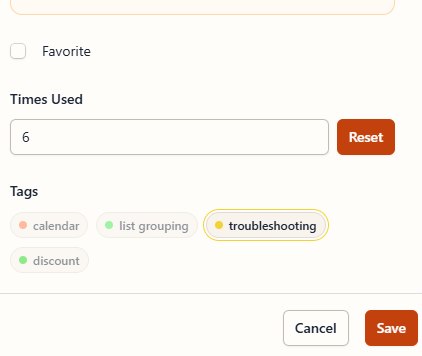
- Click the … button on the item and choose Edit. You can also add tags when you create a new item.
- Under Tags, click each tag you want to add. Click a selected tag again to remove it.
- Click Save.
See everything with a tag
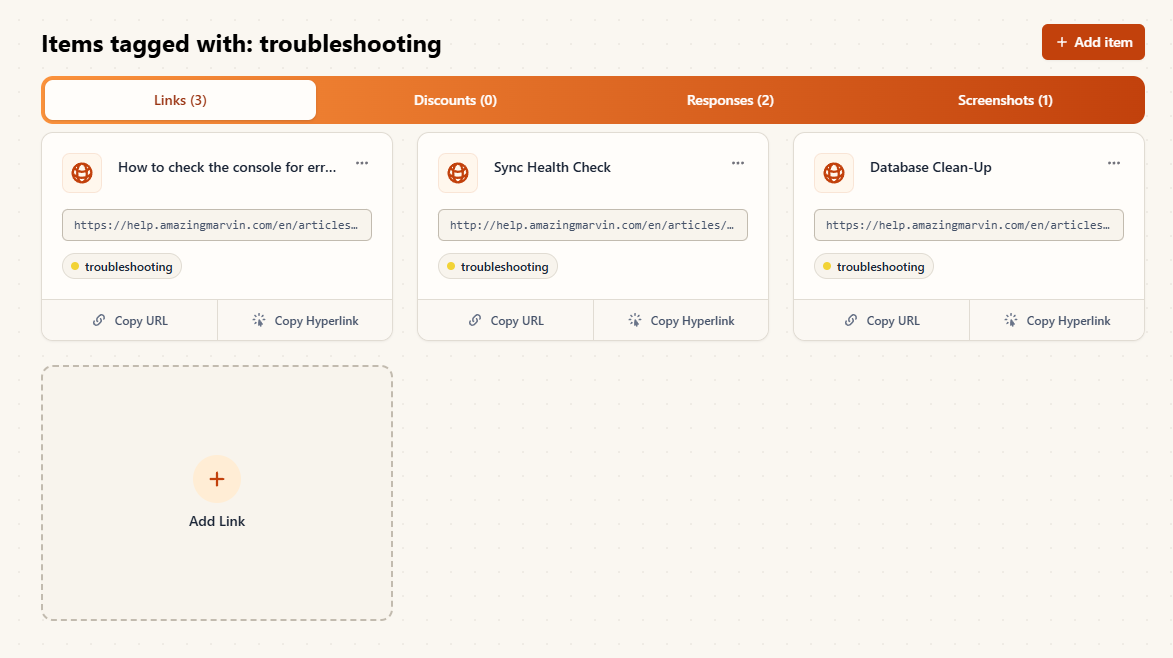
Click a tag in the sidebar to see every item that uses it, grouped into Links, Discounts, Responses, and Screenshots tabs. To create an item that already has this tag, click Add item.
To rename a tag, change its color, or delete it, hover over the tag in the sidebar and click the gear icon. Deleting a tag doesn’t delete the items that use it.
Keep your most-used items within reach
Mark favorites
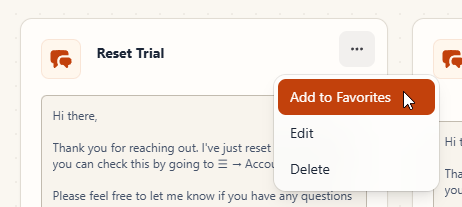
Click the … button on an item and choose Add to Favorites. To show only your favorites in a library, change the filter next to the search box from All to Favorites.
Favorites from every library also appear in the Favorites card on the Home page.
Sort each library
Use the sort menu next to the search box to change the order of items in a library:
- Most used first puts the items you copy or insert most often at the top.
- Most recently used first puts the items you used last at the top.
- Manual order lets you drag items into exactly the order you want. Learn more about reordering items.
The Home page also has Recent Activity and Most Used cards that collect items from all of your libraries.
Keep separate work in separate workspaces
If you support more than one brand or team, you can create a workspace for each one. Every workspace has its own links, responses, screenshots, and tags, so material for one never mixes with another. To switch workspaces or add a new one, click the workspace name at the top of the sidebar.
Adding workspaces requires a subscription.
Still need help?
Contact us and tell us what you were trying to do and where you got stuck.
Contact support