
Lists are simple tables for keeping track of people you work with, like beta testers, affiliates, or VIP customers. Every new list starts with Name, Email, and Notes columns, and you can add your own columns for anything else you want to track.
Open the column settings
- In the sidebar, under Lists, click the list you want to change.
- Click Columns.
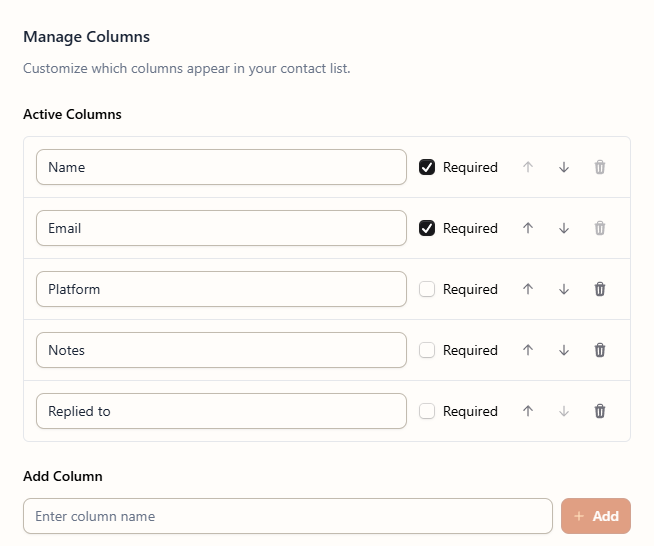
The Manage Columns window opens and shows the list’s current columns under Active Columns.
Don’t have a list yet? Click + next to Lists in the sidebar, enter a Name and an optional Description, and click Create List.
Add a column
Under Add Column, you can add a column in two ways:
- Create your own. Type a column name, like
Beta grouporRenewal date, and click Add. - Use a suggestion. Under Or choose from suggestions, click a common column like Phone, Company, Country, Affiliate Code, or Status.
When you’re done, click Save Changes. The new column appears in your list and in the form you use to add and edit contacts.
Rename, reorder, or remove columns
You can change any column under Active Columns:
- Rename a column by clicking its name and typing a new one. The information you’ve already saved in that column stays in place.
- Change the order with the up and down arrows. Columns appear in this order in your list and in the contact form.
- Make a column required by selecting Required. A contact can’t be saved until that column is filled in. Name is required by default.
- Remove a column by clicking its trash icon. To remove a required column, clear Required first.
Click Save Changes to apply your changes, or Cancel to discard them.
When you remove a column, it disappears from your list and the contact form. Make sure you no longer need the information in it before you save.
Fill in your new columns
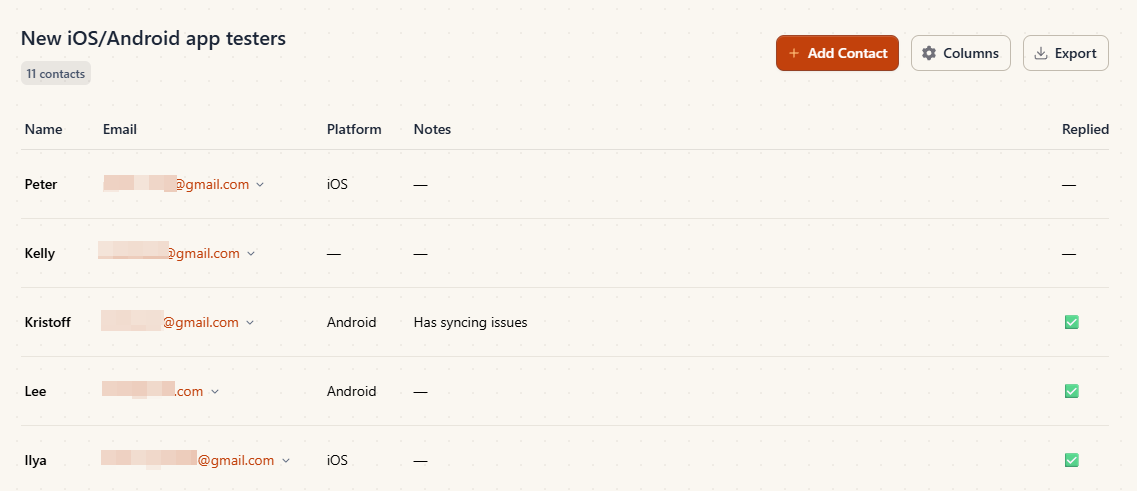
To add a contact, click Add Contact at the top of the list. The form shows a field for every column, and required fields are marked with an asterisk (*).
To fill in a new column for a contact you’ve already added, click the … button in the contact’s row, choose Edit, fill in the new field, and click Save Changes.
To work with your list in a spreadsheet, see How to export a custom list.
On the Free plan, you can create a limited number of lists. The number next to Lists in the sidebar shows how many you’ve used.
Still need help?
Contact us and tell us what you were trying to do and where you got stuck.
Contact support