
Text Expansion lets you type a short shortcut, like ;refund, and have Support Toolbox replace it with a saved response, link, discount code, screenshot, or your own text. It works in any app where you type, so you don’t need to switch to Support Toolbox to find what you need.
Turn on Text Expansion
Text Expansion is off until you turn it on:
- Open Settings.
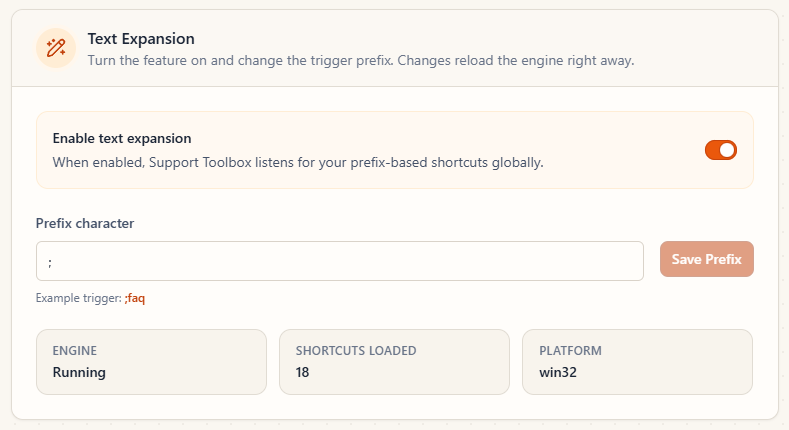
- In the Text Expansion section, turn on Enable text expansion.
When it’s on, the sidebar shows On next to Text Expansion.
Add a shortcut to a saved item
Use this for responses, links, discounts, and screenshots you’ve already saved in Support Toolbox.
- Open the item’s library, click the … button on the item, and choose Edit. You can also add a shortcut while you create a new item.
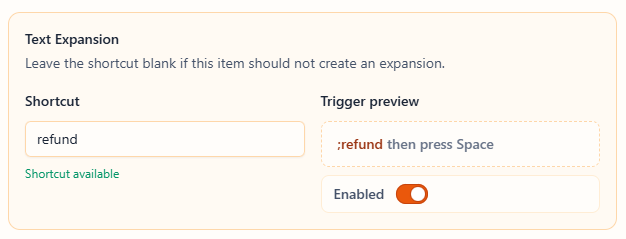
- In the Text Expansion section, enter a Shortcut, like
refund. Don’t type the prefix here. The Trigger preview shows exactly what you’ll type. - Leave Enabled on.
- Click Save.
For links, you can also choose what the shortcut inserts under Expansion output:
- URL only inserts the plain web address.
- Named hyperlink inserts the link’s name as a clickable link in apps that support formatted text.
Create a custom text shortcut
A custom shortcut inserts plain text that isn’t saved anywhere else, like a sign-off or a sentence you type often.
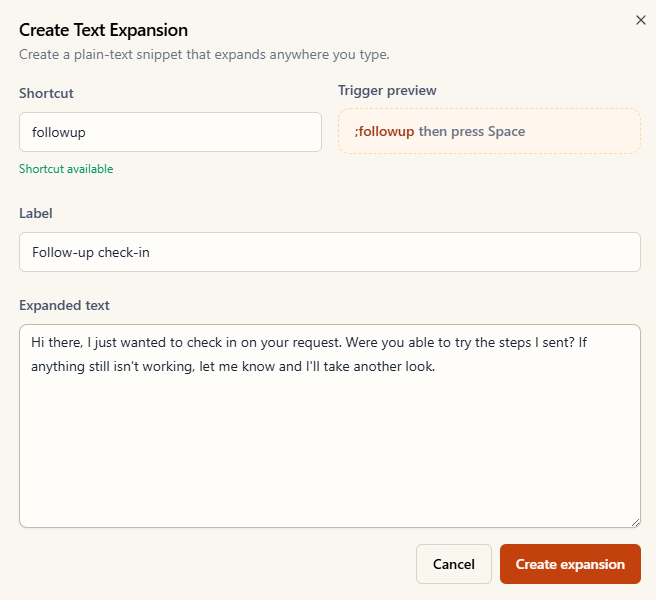
- In the sidebar, click Text Expansion.
- Click New custom expansion.
- Enter a Shortcut.
- Add a Label if you want a name that makes the shortcut easy to recognize later.
- Enter the Expanded text.
- Click Create expansion.
Custom shortcuts insert plain text only. If you need bold text, links, or images, save the text as a response and add a shortcut to it instead.
Use a shortcut
In any app, type the prefix and the shortcut, then press Space. For example, type ;refund and press Space, and Support Toolbox replaces it with your refund response.
The default prefix is ;. You can see the current one on the Text Expansion page under Current trigger format.
Choose shortcuts that are easy to use
- Shortcuts can contain letters, numbers, hyphens, and underscores.
- Each shortcut must be unique. If a shortcut is already taken, Support Toolbox tells you before you save.
- Short, memorable words work best, like
refund,reset-pw, orthanks.
Manage your shortcuts
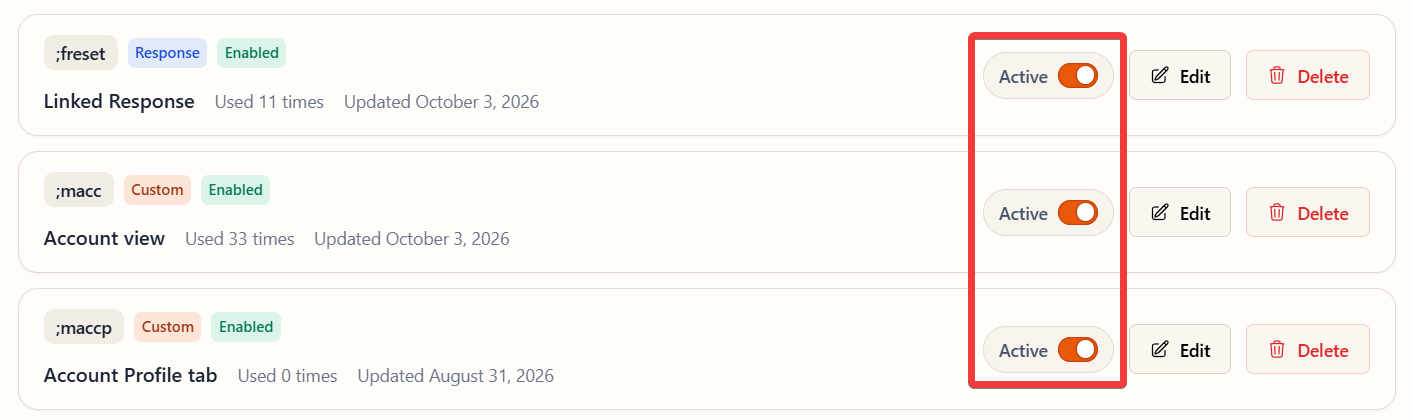
The Text Expansion page lists every shortcut, whether it’s linked to a saved item or custom. From there you can:
- Search by shortcut, label, or type.
- Turn a shortcut on or off with its Active switch.
- Click Edit to change a shortcut, or Delete to remove it.
On the Free plan, you can create a limited number of shortcuts. Custom shortcuts and shortcuts linked to items count toward the same limit.
Change the prefix
If ; gets in the way of something you type often, you can use a different prefix character:
- Open Settings.
- In the Text Expansion section, enter a new Prefix character.
- Click Save Prefix.
All of your shortcuts use the new prefix right away.
If a shortcut doesn’t expand
Make sure Text Expansion is on and the shortcut is active. On macOS, Support Toolbox also needs Accessibility permission to insert text. For step-by-step help, see Text Expansion isn’t working.
Still need help?
Contact us and tell us what you were trying to do and where you got stuck.
Contact support