
You can export any list to a CSV file, which opens in Excel, Google Sheets, Numbers, and most other spreadsheet and CRM tools. Exporting is an easy way to share a list, work with it in a spreadsheet, or keep a backup.
Export a list
- In the sidebar, under Lists, click the list you want to export.
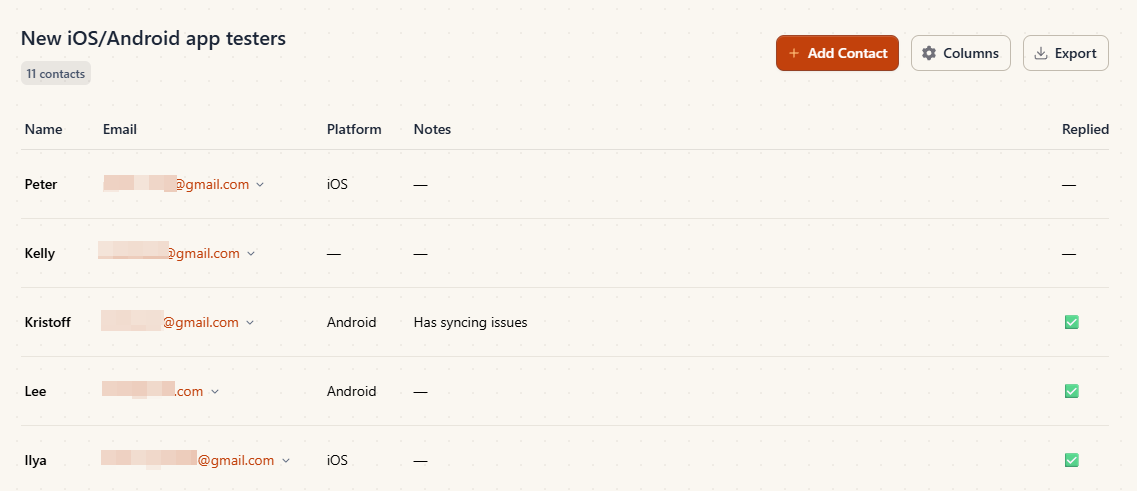
- Click Export at the top of the list.
- Choose where to save the file. Support Toolbox suggests your Downloads folder and names the file after your list, like
Beta testers.csv. Characters that can’t be used in file names, like/or?, are left out. - Click Save.
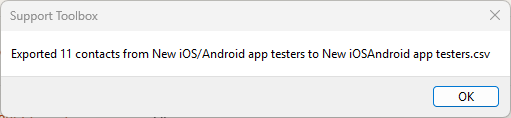
A message confirms how many contacts were exported and the name of the file. If you close the save window without saving, nothing is exported.
What’s in the file
- The first row contains your column names, in the same order as in your list.
- Each contact is on its own row, with every column included, even your custom ones. Fields you haven’t filled in are left empty.
- Text with commas, quotes, or line breaks, like longer notes, stays in a single cell.
- Accented letters and other non-English characters display correctly, including in Excel.
If the list doesn’t have any contacts yet, the file contains only the column names.
To change which columns are exported, or their order, update your list’s columns before you export. See How to add custom columns to a list.
Open the file in a spreadsheet
- Excel or Numbers: Double-click the file.
- Google Sheets: Choose File → Import, click Upload, and select the file.
An exported file is a copy of your list at the moment you exported it. It doesn’t update when you change the list, so export it again whenever you need the latest version.
Still need help?
Contact us and tell us what you were trying to do and where you got stuck.
Contact support