
You can manually arrange your links, discounts, responses, and screenshots so the items you use most often appear exactly where you want them.
Switch to manual ordering
- Open the Links, Discounts, Responses, or Screenshots view.
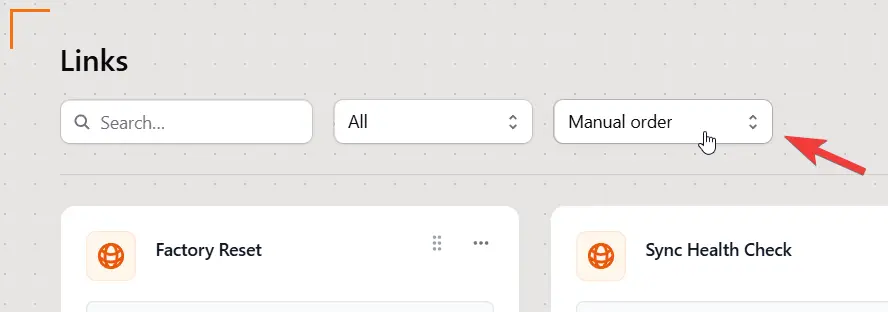
- Click the order dropdown menu above the list of items.
- Select Manual.
Reorder your items
After you select Manual, a drag handle appears on each item.
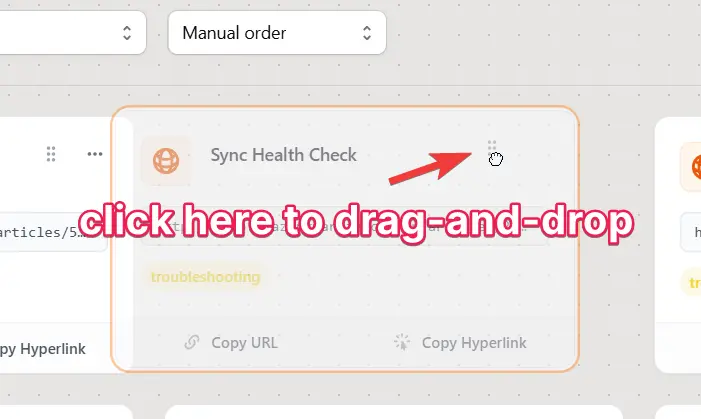
Click and hold an item’s drag handle, move the item to its new position, and then release it. Repeat this for any other items you want to rearrange.
Drag handles are only available when the view is set to Manual ordering.
Still need help?
Contact us and tell us what you were trying to do and where you got stuck.
Contact support