
Quick Search is a small search window you can open from any app with a keyboard shortcut. Use it to find a link, response, discount, or screenshot, copy it, and paste it into your reply without switching to Support Toolbox.
Open Quick Search
Press Ctrl+Shift+G on Windows or Cmd+Shift+G on macOS. Quick Search opens on top of the app you’re using, ready for you to type.
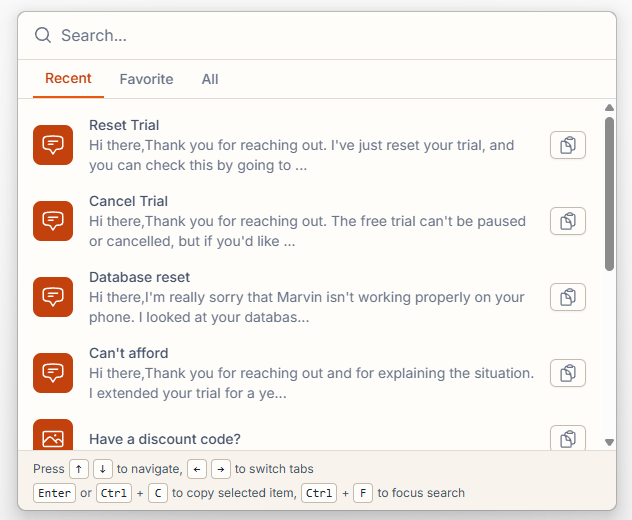
If Quick Search doesn’t open, make sure it’s turned on in Settings. See Quick Search doesn’t open or opens unexpectedly for more help.
Browse recent items and favorites
Before you type anything, Quick Search shows three tabs:
- Recent shows the 10 items you’ve used or changed most recently.
- Favorite shows the items you’ve marked as favorites.
- All shows every item in your current workspace.
Press ← or → to switch between tabs.
Search for an item
Start typing to search all of your libraries at once. Quick Search switches to the All tab and shows the matching items.
Items whose name or discount code matches what you typed appear first, followed by matches in descriptions, link URLs, and response text.
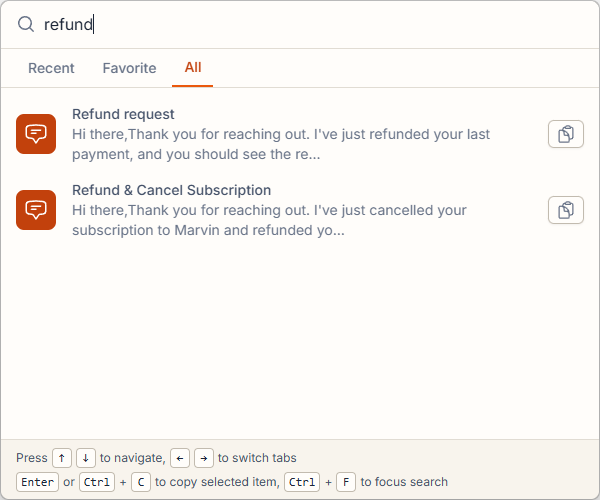
Copy an item and paste it
- Press ↑ or ↓ to select an item.
- Press Enter to copy it. You can also click the copy button next to any item.
- Paste the item wherever you need it, like your help desk, email, or chat.
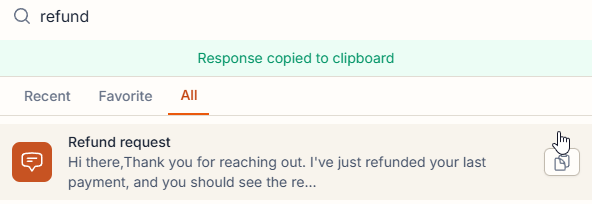
A confirmation appears at the top of the window after each copy. Items are copied the same way as with the copy buttons in the app, so links paste as clickable text with the link’s name in apps that support formatting, like Gmail, Zendesk, and Slack.
Close Quick Search
Press Esc, click outside the window, or press the Quick Search shortcut again.
Tips for finding items faster
- Name items the way you’d search for them. Names are checked first, so a clear name gets an item to the top of the results.
- Mark the items you use most as favorites. They’re always one tab away in Favorite. Learn more about organizing your library.
- Pick a shortcut that suits you. If the default shortcut conflicts with another app, you can change the Quick Search shortcut. If you don’t use Quick Search, you can also turn it off.
Still need help?
Contact us and tell us what you were trying to do and where you got stuck.
Contact support