
If the Quick Search window doesn’t open when you expect it to, or appears when you aren’t trying to open it, check its settings and keyboard shortcut.
Make sure Quick Search is enabled
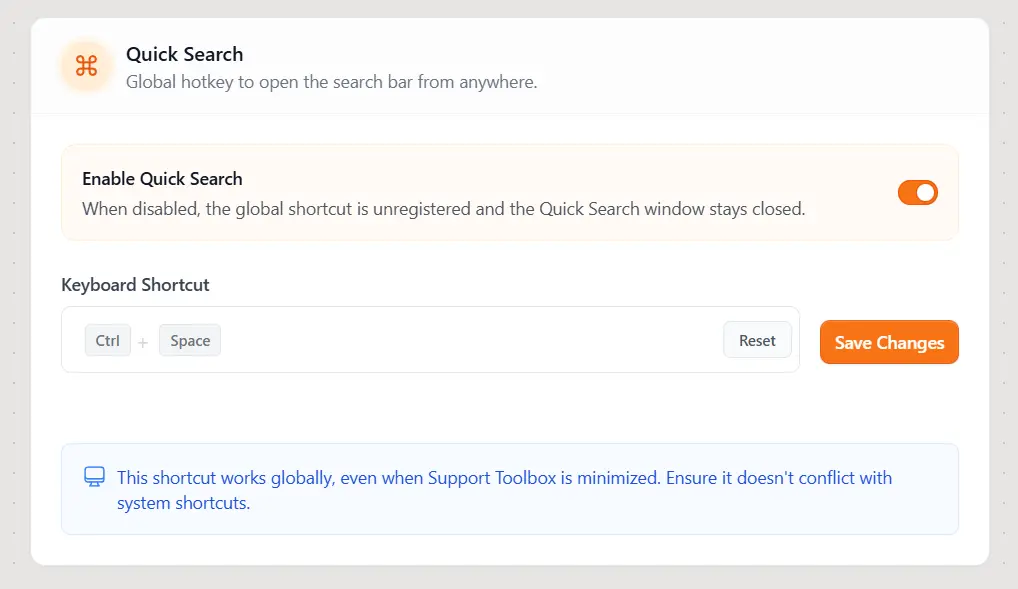
- Open Settings in Support Toolbox.
- Find the Quick Search section.
- Make sure Enable Quick Search is turned on.
- Try opening Quick Search with the keyboard shortcut shown in Keyboard Shortcut.
If Quick Search opens unexpectedly
The Quick Search shortcut works anywhere on your computer. In Settings, check the key combination shown in Keyboard Shortcut. If it’s easy to press by accident or conflicts with another app, select the field, press a different combination, and click Save Changes.
Choose a shortcut that you don’t use in other apps. You can also learn more about changing the Quick Search shortcut.
Still need help?
Contact us and tell us what you were trying to do and where you got stuck.
Contact support