
If a Text Expansion shortcut doesn’t expand as expected, check that Text Expansion is on, then confirm the specific expansion is enabled and that you’re typing its trigger correctly.
Make sure Text Expansion is on
Check the On/Off status next to Text Expansion in the sidebar. If it says Off, open the Text Expansion view and choose “Manage settings,” then turn the feature on. You can also go directly to Settings and enable “Enable text expansion.” Confirm the sidebar status now says On.
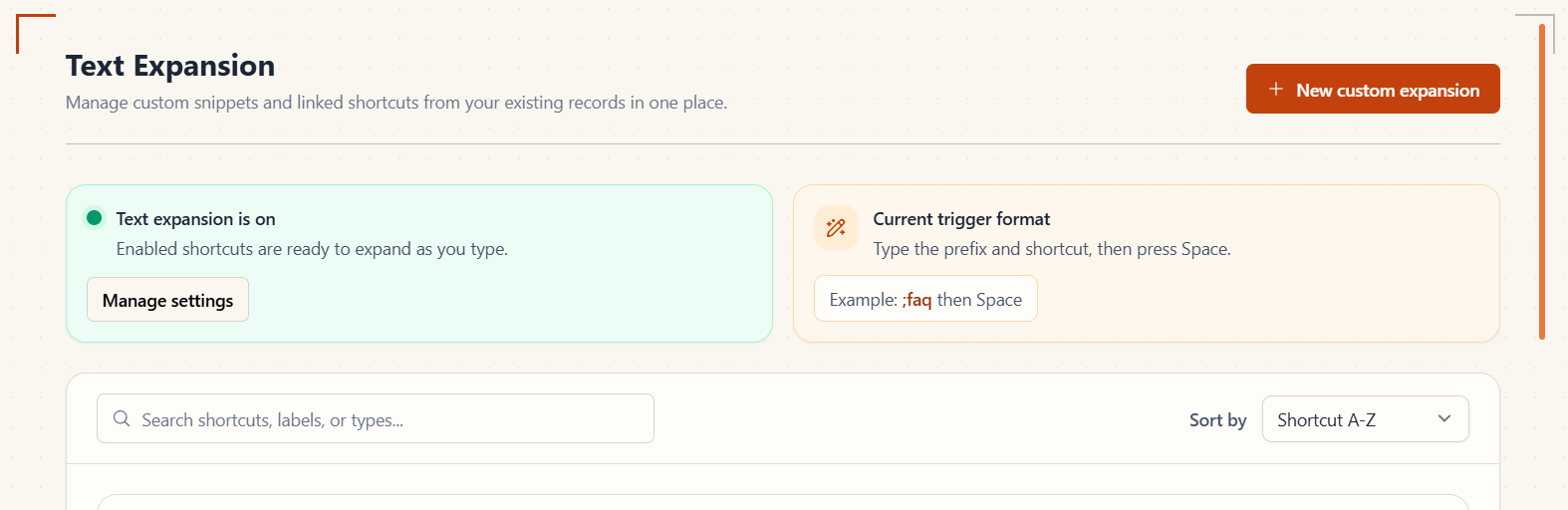
Check the expansion you’re using
- Open Text Expansion and find the expansion you’re trying to use.
- Make sure its Active toggle is on and its status reads Enabled. Turn it on if it’s disabled.
- Check the trigger shown for that expansion. Type it in full, including your configured prefix, then press Space.
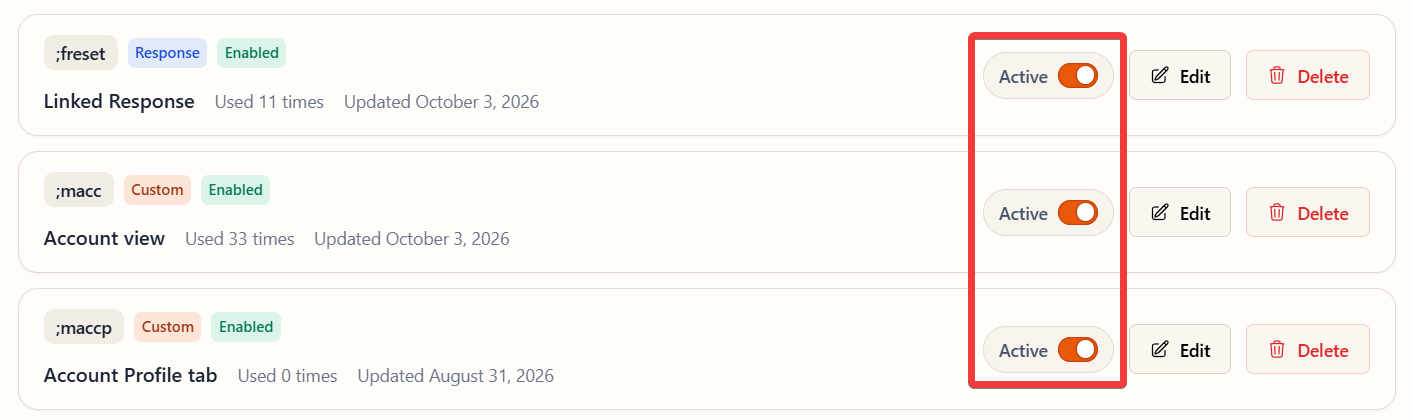
If you’re using macOS
macOS requires Accessibility permission so Support Toolbox can recognize your shortcut and insert its content. If macOS prompts you, choose “Open System Settings.” You can also open Apple menu → System Settings → Privacy & Security → Accessibility and turn on Support Toolbox. If Support Toolbox isn’t listed, click +, select it from your Applications folder, then click Open.
For Apple’s instructions, see Allow accessibility apps to access your Mac.
Still need help?
Contact us and tell us what you were trying to do and where you got stuck.
Contact support